
Bookings
ID verification
Check that the person renting a dress is who they say they are, before it leaves your store. ID verification is off until you turn it on. You choose whether your team reviews each ID by hand, or whether Stripe Identity checks the customer's ID and a live selfie automatically.
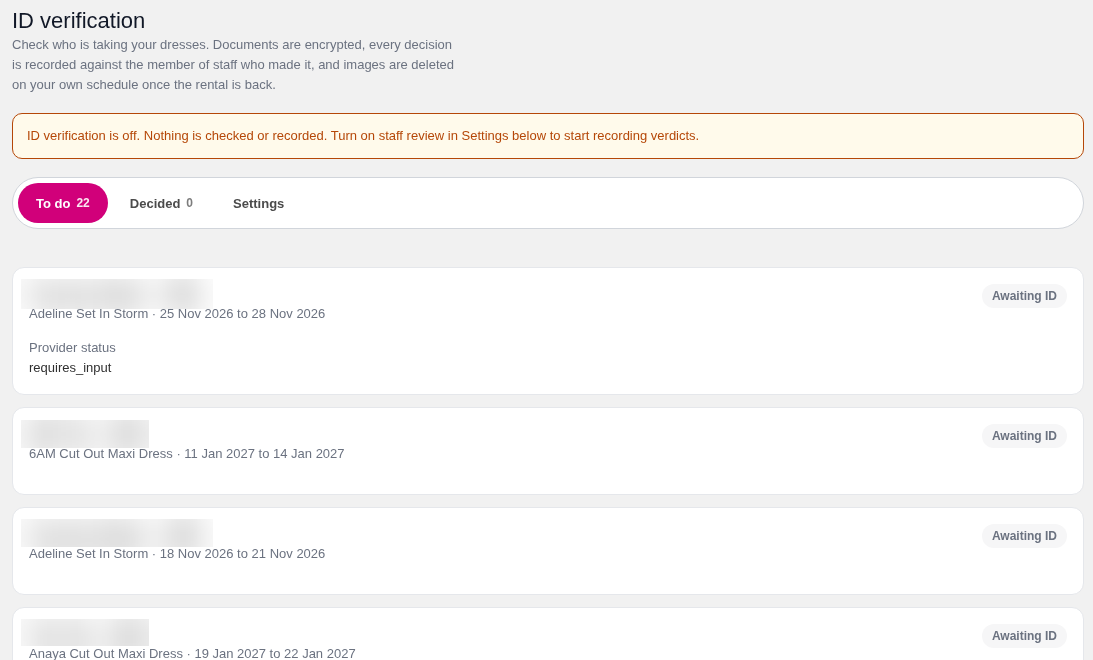
Open ID Verification in the app menu. It has three tabs: To do (checks waiting on your team), Decided (checks already approved or rejected) and Settings.
How IDs are checked
In ID Verification → Settings, under How IDs are checked, pick one:
- Off: Nothing is checked or recorded. Customers can still attach a photo if you ask for one in Booking Fields.
- Staff review (free): The customer uploads a photo of their ID. The app encrypts it and puts it in your To do list, and a member of your team approves or rejects it. Every decision is recorded against the staff member who made it.
- Automatic identity check (Stripe Identity): Stripe Identity checks the customer's ID document and a live selfie on their phone, and matches the two. The document and selfie go to Stripe only. They never reach the app or your store. You pay US$1.50 per completed check.
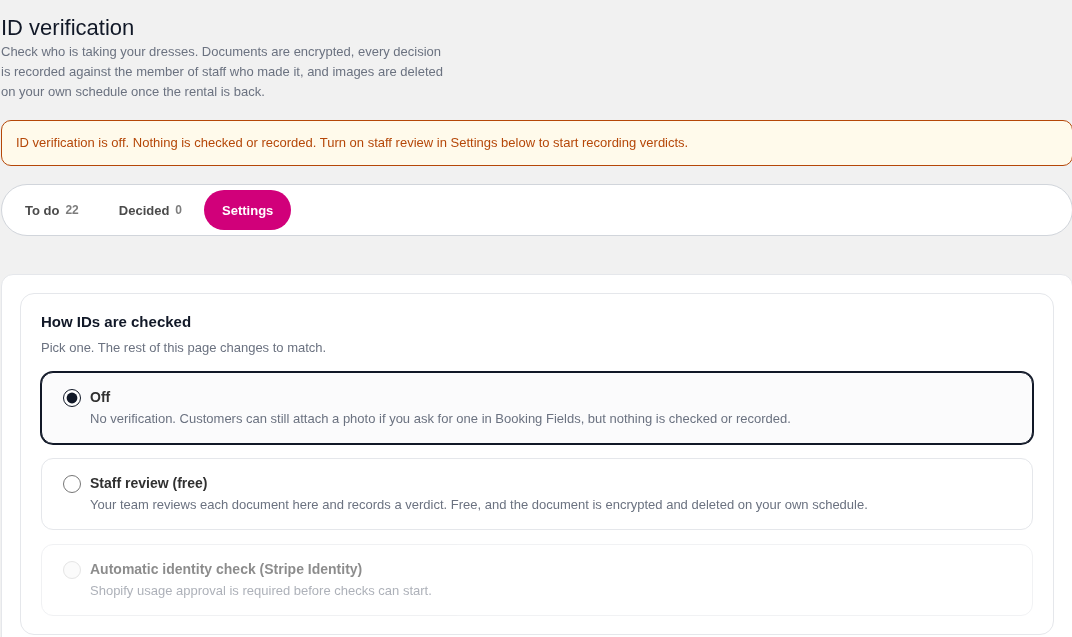
You can select Automatic identity check before you approve the usage charge. Until you approve it, Automatic is shown as waiting for usage approval, and customer prompts stay paused. No automatic checks run, and customers aren't emailed or asked to verify, until approval is in place. See "Approve the usage charge".
Price
Automatic checks cost US$1.50 per completed check, billed on your Shopify app invoice as a usage charge.
- A check is "completed" when Stripe finishes checking the ID. You pay for it whether the result is a pass or a fail.
- A check the customer starts and abandons is free.
- A customer who verified recently is not checked again (see "Who has to verify"), so repeat renters don't cost you again.
- Staff review is always free.
Turn it on
- Under How IDs are checked, choose Staff review (free) or Automatic identity check (Stripe Identity).
- Choose When to require a check (see below).
- For automatic checks, set your Monthly completed check limit and Monthly spend cap (USD), then click Save ID verification settings.
- Click Approve usage charge and approve it on the Shopify screen. See "Approve the usage charge".
- Check the customer message and email wording, then save.
Who has to verify
Under When to require a check, pick one:
- First rental or expired verification: A customer verifies once. Their later rentals open already verified until the verification expires. This is the usual choice.
- Every order: Every order with a rental needs a fresh check, even from a customer who verified before.
- Orders over the minimum value: Only rentals worth more than the Minimum rental value need a check.
- Existing rules: Keeps the rules your store already had before these options existed.
You can also limit checks to particular dresses. Enter product IDs, collection IDs or product tags. A dress that matches any of them needs a check. Leave all three blank to check all rentals.
Ask again after sets how many months a verified customer stays verified. A verification also ends when the ID document it used expires, whichever comes first. Use 0 for no time limit (document expiry still applies).
Orders placed before you turned ID verification on are never held up. Those customers weren't asked for ID when they booked.
Identity check options
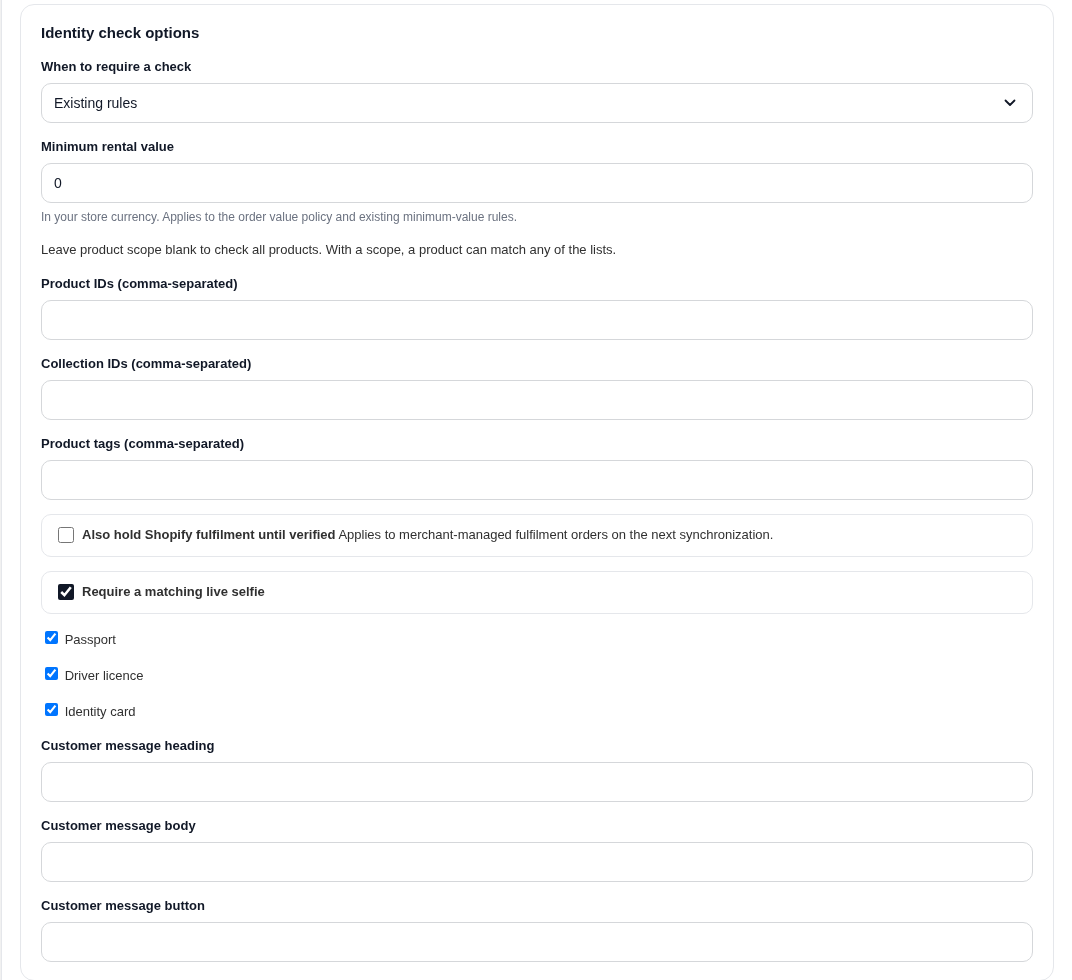
- Require a matching live selfie: On by default. The customer takes a live selfie that Stripe matches to the photo on their ID. Turn it off to check the document only. That costs the same but is easier to beat with someone else's ID.
- Accepted documents: Passport, driver licence and identity card. Untick any you don't accept. At least one must stay ticked.
- Most checks per booking: How many times a customer can retry a failed check on one booking. Each retry that Stripe completes is a paid check.
- Customer message heading, body and button: Your own wording for the verify prompt. Leave them blank to use the built-in wording.
Limits and the spend cap
Two limits protect you from an unexpected bill. Both reset each month.
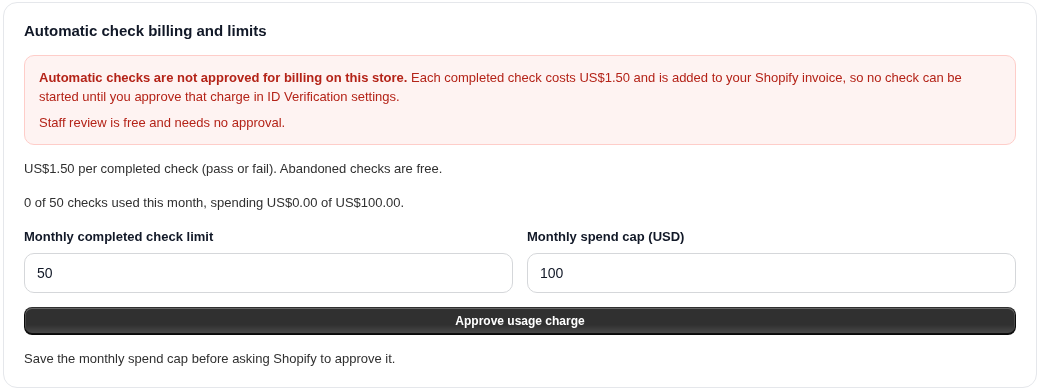
- Monthly completed check limit: The most automatic checks that can complete in a month, 50 by default.
- Monthly spend cap (USD): The most identity checks can cost you in a month, US$100 by default.
Checks a customer has started count towards both limits while they are in progress, so a busy day can't run past them. When either limit is reached, no new automatic checks start until next month or until you raise the limit. Customers who still need to verify are asked to wait, and your team can review those bookings by hand instead.
The Automatic check billing and limits panel shows this month's checks, what you've spent, and whether the usage charge is approved.
One usage charge for SMS and identity checks
Shopify lets an app have only one usage charge on your subscription. So SMS notifications and identity checks share it: one line on your Shopify app subscription, with one combined monthly maximum.
- The terms you approve list both prices: SMS per billable segment, and US$1.50 per completed identity check.
- The combined maximum is at least US$92 per 30 days by default (100 SMS segments plus 50 identity checks). If your own SMS and identity check limits add up to more, the app asks Shopify for that total instead.
- Each charge on your Shopify invoice is labelled SMS or ID check, so you can tell them apart.
- Each feature still keeps its own limits inside the app. Identity checks stop at your Monthly completed check limit or Monthly spend cap, even if the shared maximum has room left. SMS keeps its own monthly limit too. Neither feature can go past the shared Shopify maximum.
- If you already approved SMS usage charges, approving identity checks replaces that SMS-only charge with the shared one. Your SMS billing carries on without a break.
Approve the usage charge
Shopify only lets the app bill usage after you approve it. You do this once for SMS and identity checks together.
- In ID Verification → Settings, save your Monthly completed check limit and Monthly spend cap first.
- Click Approve usage charge. Shopify's approval page opens.
- Check the details. If you're on a paid plan, Shopify shows your current plan at the same price, plus an App spending limit with the combined maximum, and the terms for SMS and identity checks. Click Approve.
- You're returned to the app.
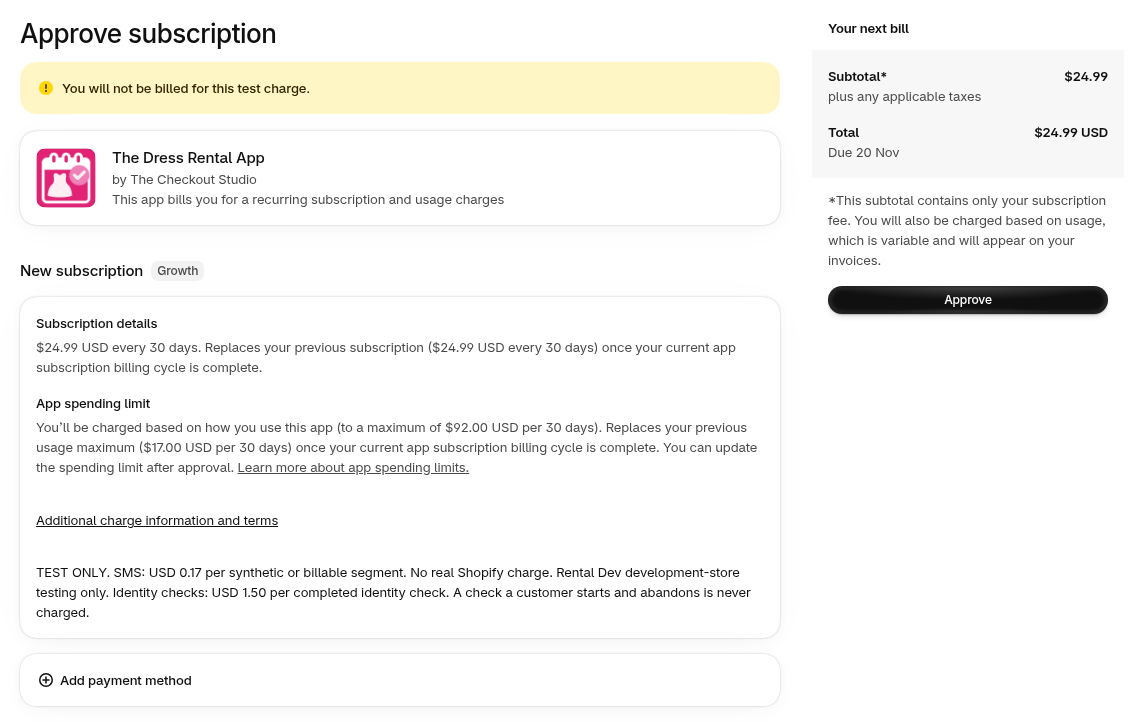
When it starts. Shopify's approval page shows the exact start date for the new charge. On a store that already has a paid plan, the new combined limit applies from the next billing cycle. Until then, your current plan and any existing SMS charge carry on.
Once it's active, the panel shows Usage billing approved and the combined SMS and identity check usage for this billing cycle.
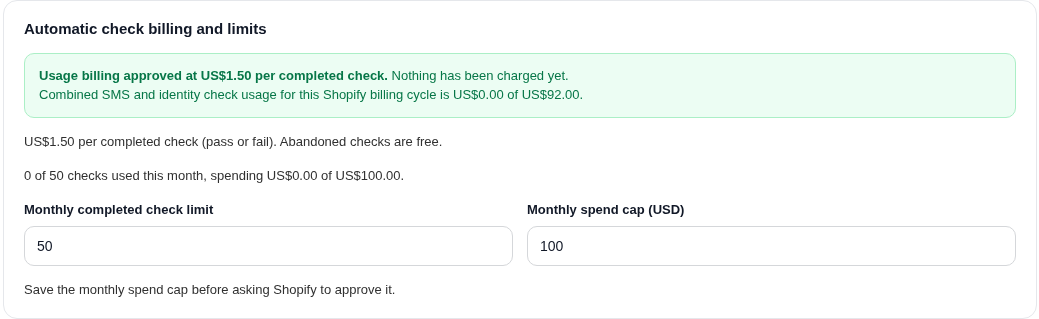
If you later raise your limits above the approved maximum, the button changes to Raise cap. Click it and approve the new maximum in Shopify. The new maximum applies as soon as you approve it. Lowering a limit needs no approval.
Only the store owner, or staff allowed to approve app charges, can approve it. The usage charge can't be added to an annual plan, or while a free trial or discount is running. The app tells you if that's why it can't continue.
Hold rentals until verified, or just flag them
- Hold bookings until the ID is verified: On, your team can't pack, mark ready or mark sent an unverified booking. Marking a dress returned is never blocked. Off, bookings just show their verification status.
- Also hold Shopify fulfilment until verified: Off by default. Puts a hold on the Shopify order's fulfilment, so it can't be fulfilled from Shopify admin either. The app releases its own hold when the customer verifies or the booking no longer needs a check. It never releases holds placed by you or another app.
What customers see
Customer prompts and reminder emails for automatic checks stay paused until the usage charge is approved.
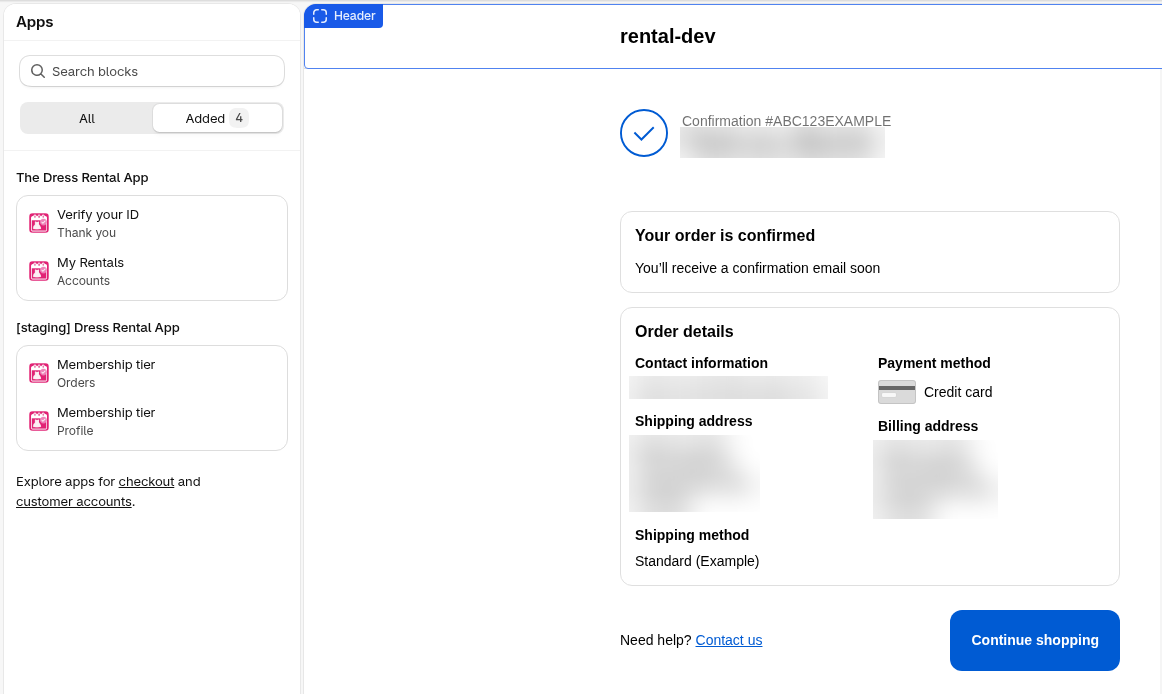
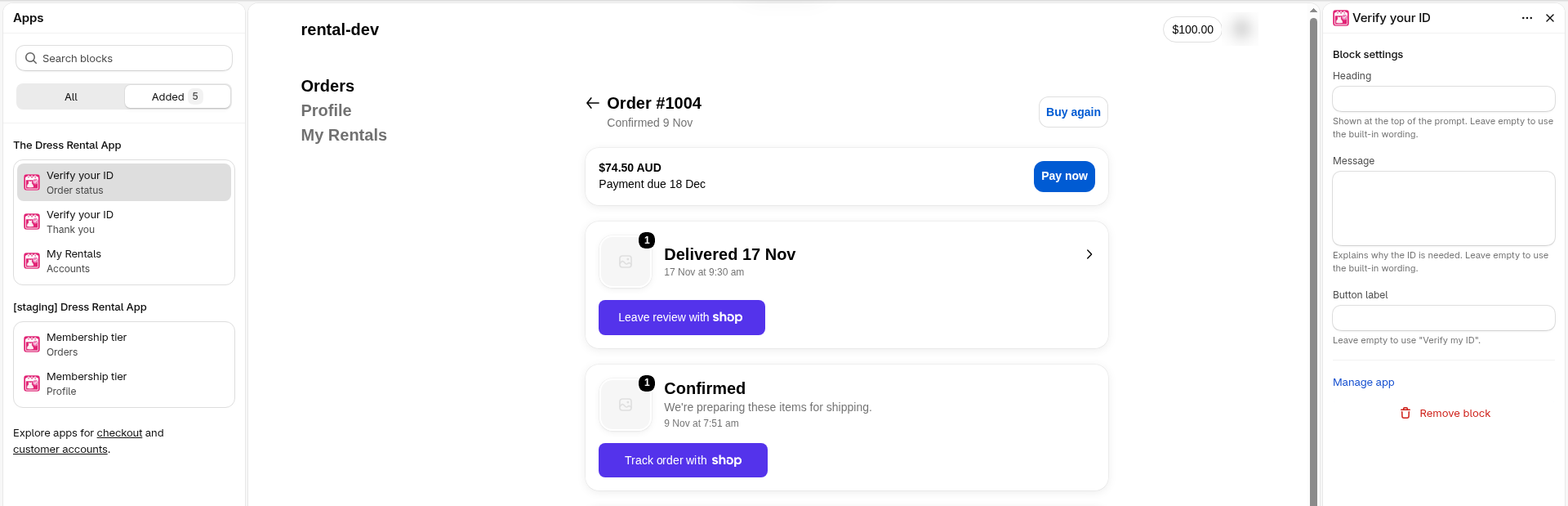
Thank-you page and order status page. Straight after checkout, the customer sees a prompt to verify their ID with a Verify my ID button. Once they've verified, it shows Identity verified with the date. While Stripe or your team is checking, it says so. The same block appears on the order status page in their account. For privacy, the block only shows to customers who are signed in to their account at checkout. Guests verify from the email link.
Add the block once: in Shopify admin go to Settings → Checkout → Customize, open the Thank you page, click Add app block and choose Verify your ID. Then do the same on the Order status page. You can set your own heading, message and button label in the block settings, or leave them empty to use the built-in wording.
My Rentals. In their customer account, My Rentals shows an Identity verified badge with the date, or Verification required with a Verify my ID button.
Email. If email reminders are on, the customer gets an email with their verification link after they book, then reminders (you choose Days between reminders and Most reminders to send) until they verify. You can change the subject, wording and button text, and send yourself a test email from settings. A test email never emails a customer, starts a check or charges anything.
Each link is for one booking only and stops working after 14 days. A new email always has a fresh link.
The check itself. The customer is taken to Stripe's secure page, photographs their ID and (if turned on) takes a selfie. It takes a couple of minutes on a phone. When they finish they come back to a page on your store that confirms it was sent.
In Shopify admin and in the app
- Bookings: Each booking shows its ID status (verified, waiting, in review, failed or not required).
- Shopify customer page: The customer's Identity verified and Identity verified at fields show in the metafields section.
- Shopify order page: The order's Identity status field shows in the metafields section.
These fields hold only the result and dates. No document details are stored in Shopify.
Staff review
Open the To do tab to see checks waiting on your team. In staff review mode every upload lands here. In automatic mode, Stripe passes are approved automatically, but some come to your team instead: when the name on the ID doesn't fully match the booking, the customer is under your Minimum age, the ID expires before the dress is due back, or Stripe couldn't read the details.
- Open the check. Opening an ID document is logged against your name.
- Read any warnings (name mismatch, age, expiry, the same ID used by another customer).
- Click Approve, or Reject with a reason. You can approve past a warning on purpose. The warning stays on the record.
Decided checks move to the Decided tab. Set an alert email in settings to hear about failed checks, the same ID turning up on two customers, and bookings due out soon without a verified ID.
Retention and privacy
- Automatic checks: The ID and selfie are held by Stripe, not by the app or your store. The app keeps only the result, the dates, and a reference to the Stripe check.
- Staff review: The uploaded ID is encrypted and deleted automatically after the number of days you set in Delete documents after, counted from the end of the rental. The result and a one-way fingerprint are kept, so a returning customer isn't asked again and a reused ID can still be spotted.
- Customer data requests: When Shopify sends a customer erasure request, their verification is deleted and the Shopify fields are cleared.
- Your responsibilities: Tell customers in your terms or privacy policy that you check ID and why. Live selfie matching is biometric processing. If you rent to customers where biometric consent laws apply, make sure your consent wording covers it.
FAQ and troubleshooting
Automatic shows as waiting for usage approval.
That's expected until you approve the usage charge (see Approve the usage charge above). You can still select Automatic and save your settings, but customer prompts stay paused and no automatic checks run until approval is in place. Shopify's approval page shows the exact start date. On a store that already has a paid plan, the new combined limit applies from the next billing cycle. If the option says Stripe isn't set up, contact support.
Will SMS and identity checks be billed separately?
They share one usage charge on your Shopify subscription with one combined maximum, but each charge is labelled SMS or ID check on your invoice, and each keeps its own limit in the app.
I already pay for SMS. Will approving identity checks stop my SMS?
No. Your SMS charge keeps running. Shopify's approval page shows when the shared charge starts. On a store that already has a paid plan, the new combined limit applies from the next billing cycle, and SMS then carries on under the shared charge.
The app says it can't start the approval.
Usage charges can only go on a monthly plan, and not while a free trial or discount is running. The app tells you if that's the reason. Contact support if you're not sure why.
A customer says they didn't get the email.
Check email reminders are on, and look in the booking for when the last request was sent. They can also verify from My Rentals or the order status page. Each new email has a fresh link.
A customer failed the check.
They can retry from the same link, up to your Most checks per booking. After that, review the booking by hand. Each retry Stripe completes is a paid check.
New checks have stopped starting.
You've reached your Monthly completed check limit, your Monthly spend cap, or the shared Shopify maximum. Raise the limit in settings (click Raise cap if it goes above what you approved), or wait until next month.
Will a returning customer be charged again?
Not with First rental or expired verification, until their verification or their ID expires. With Every order, yes, each order is a new check.
Can I refund a check?
Stripe charges for every completed check, pass or fail, so checks can't be refunded. Use the limits to control spend.
The thank-you page doesn't show the verify block.
Add the Verify your ID app block to the Thank you and Order status pages in the checkout editor. It only shows on orders that need a check, to signed-in customers.
Can I turn it off?
Yes. Under How IDs are checked, choose Off. Bookings already waiting stop being chased, and nothing more is charged.
If you need us to set this up, please let me know as we provide free onboarding. Video walkthroughs are on our YouTube channel.