Settings → Delivery
Delivery methods & booking dates
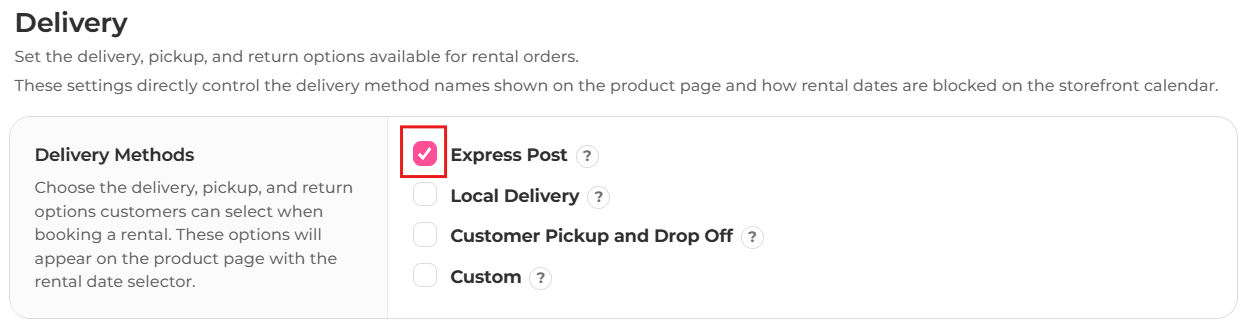
Delivery settings control the delivery method names on the product page and how dates are blocked on the storefront calendar.
1. Choose your methods
Tick each method you offer:
- Express Post
- Customers receive and return rentals by post.
- Customer Pickup and Drop Off
- Customers collect and return in person.
- Local Delivery
- You deliver locally.
- Custom
- Your own method, such as courier, stylist delivery or event drop-off.
Use the arrows to set the order shown on the product page. The first enabled method is selected by default.
2. Set each method's rules
Every method has its own settings:
- Name displayed to customers
- For example Express Delivery, Australia Post or Postal Hire.
- Start date label
- Shown above the chosen start date, for example Delivery Date, Wear Date or Event Date.
- End date label
- Shown above the return date, for example Return Date or Post Back Date.
- Blocked days from current date
- Stop customers booking too soon. Set 2 if you need two days to prepare or ship.
- Same-day cutoff time
- After this time, today stops counting as a bookable start date. Leave blank for no cutoff.
- Default buffer prior to rental
- Extra days blocked before the rental for packing or shipping, for example 1–2 days.
- Default buffer after rental
- Extra days blocked after the rental for return shipping, cleaning or inspection, for example 1–3 days.
- Rentals cannot start on
- Weekdays customers can't choose as a start date, for example Sunday if you don't ship.
Pickup times
For pickup-style methods, tick Let customers choose a pickup time to show a time selector on the product page:
- Days before the start date pickup opens: use 0 to offer pickup on the start date itself.
- Available pickup times: add times one per line (for example 9:00am - 11:00am), or generate them from a start time, end time and interval (15, 30 or 60 minutes).
- Or tick We will contact the customer to arrange pickup instead to hide the selector and show a note.