Settings → Notifications
Notifications & email templates
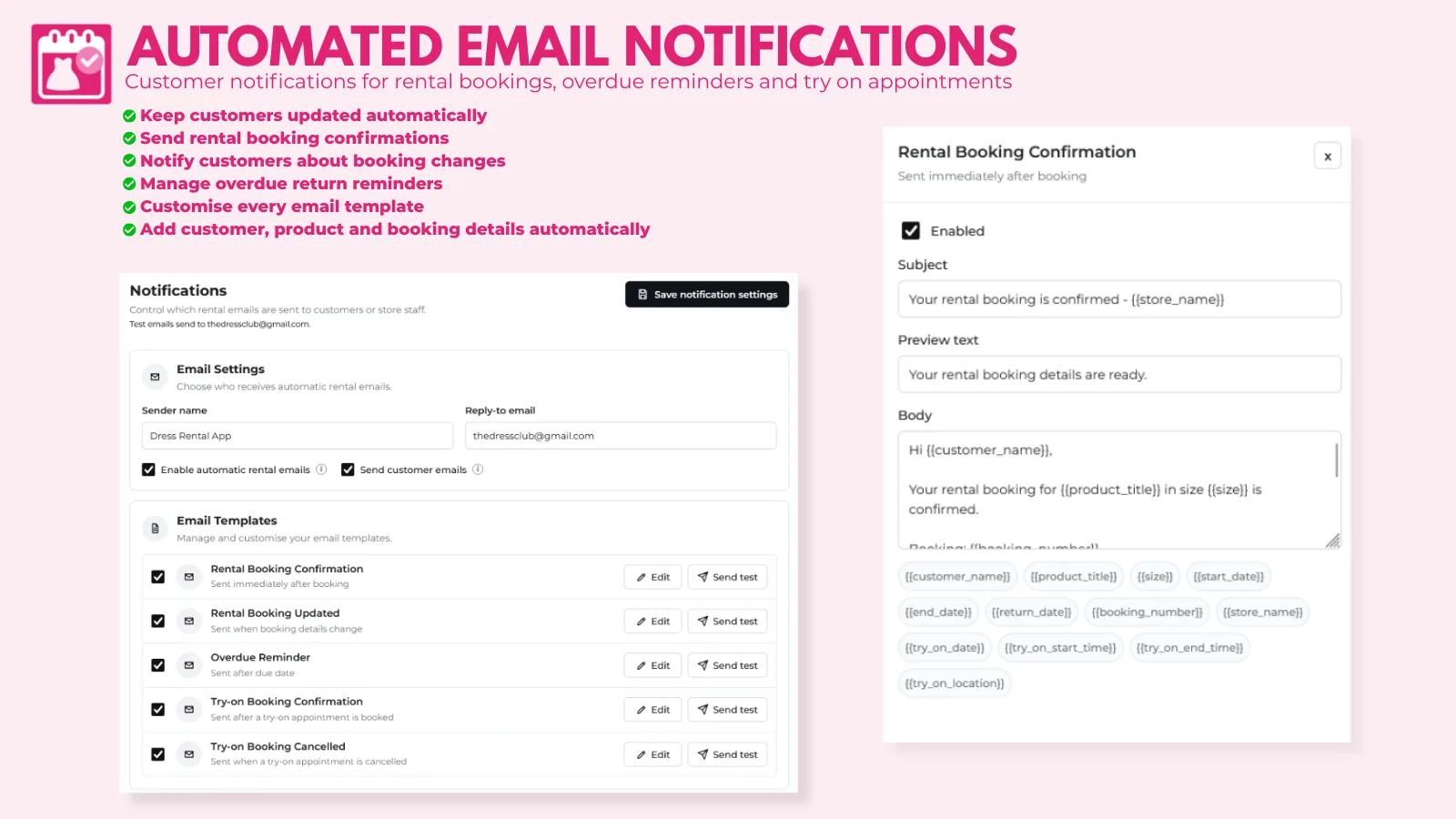
Choose who receives automatic rental and try-on emails, edit each email template, and send overdue reminders.
Email settings
- Set your Sender name and Reply-to email.
- Tick Enable automatic rental emails.
- Tick Send customer emails to email customers as well as staff.
- Click Save notification settings.
Email templates
| Template | When it's sent |
|---|---|
| Rental Booking Confirmation | Immediately after booking |
| Rental Booking Updated | When booking details change |
| Overdue Reminder | After the return date has passed |
| Try-on Booking Confirmation | After a try-on is booked |
| Try-on Booking Cancelled | When a try-on is cancelled |
| Try-on reminder | The day before a try-on |
Click Edit to switch a template on or off and change its Subject, Preview text and Body. Use these placeholders to fill in booking details:
{{customer_name}} {{product_title}} {{size}} {{booking_number}} {{start_date}} {{end_date}} {{return_date}} {{store_name}}
Try-on emails can also use {{try_on_date}} {{try_on_start_time}} {{try_on_end_time}} {{try_on_location}}.
Click Send test to email yourself a preview. Tests go to your reply-to email, or your shop email if that's blank.
Overdue email
Turn on Overdue reminder and choose how many days after return to send it, to remind customers when an item hasn't come back.
SMS notifications
Starter, Growth and Big Business plans can send rental booking confirmations and try-on updates by SMS. Free stores see SMS settings locked.
- Ask support to connect Twilio SMS for your store.
- Open Settings → Notifications and turn on the SMS option you need.
- Enter your message wording and save the settings.
SMS requires a valid customer or merchant mobile number. Vendor Consignment SMS also requires the Vendor Consignment add-on.