
Bookings
Disputes, invoices and collecting charges
After a rental, use Bond & Damage Holds to record a dispute, send an invoice, charge a saved card (when one exists), deduct from the cash bond, refund the bond, or release a hold. Charges are never automatic — you choose when to collect, and only after a documented dispute.
This is separate from the Customer Disputes tab inside a booking, which is for notes and status only. That guide is here. Bond refunds can also be made from a booking's Payments tab; see late fees and bond refunds.
The Bond and damage holds page
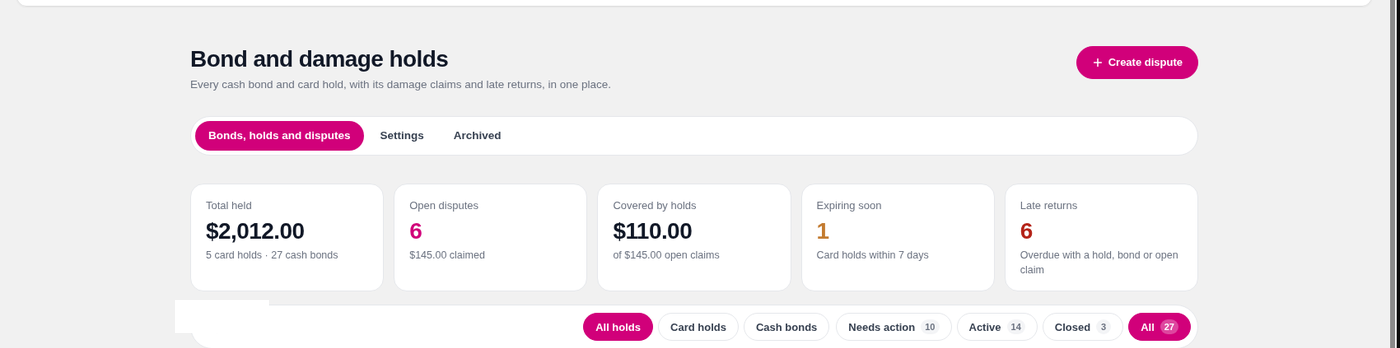
The page has three tabs: Bonds, holds and disputes, Settings and Archived. The first tab lists every cash bond and card hold, with summary cards, filters and a detail panel.
- Instrument filters
- All holds, Card holds or Cash bonds.
- Status filters
- Needs action, Active, Closed or All. Needs action includes an open or invoiced claim, an overdue rental with a live hold or bond, a returned rental that still has a remaining hold or bond, or a charge that failed. Closed means nothing is left to collect or refund (including cancelled and refunded orders).
- Detail panel
- Click a row to see the card hold, remaining cash bond, dispute history and actions. Status pills on the row show whether the card was saved, the bond was paid, and whether the booking is active, in dispute, or closed.
- Pagination
- 15 rows per page, with Previous and Next.
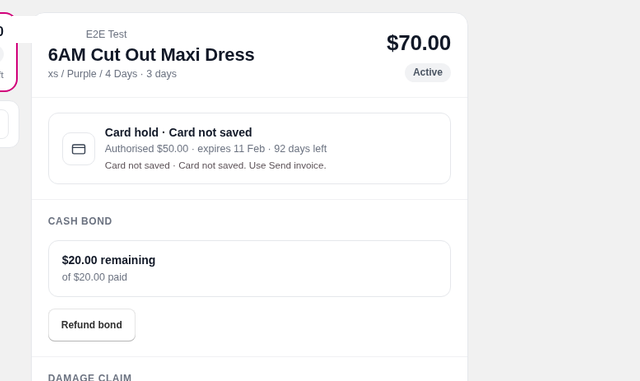
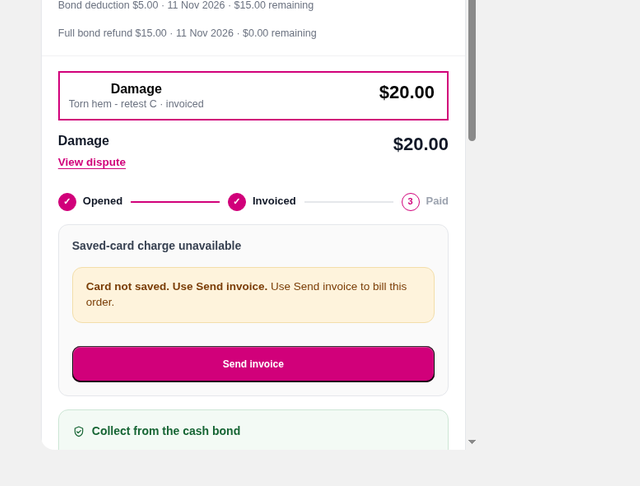
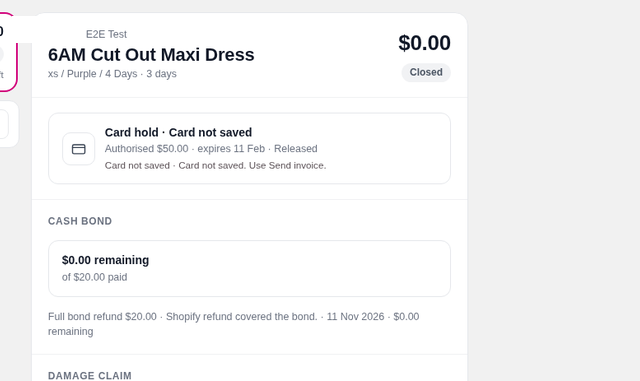
When the card wasn't saved, the panel says Card not saved. Use Send invoice. Charging a saved card requires a saved payment method on the order (Shopify Payments). If there isn't one, use Send invoice.
Mark returned
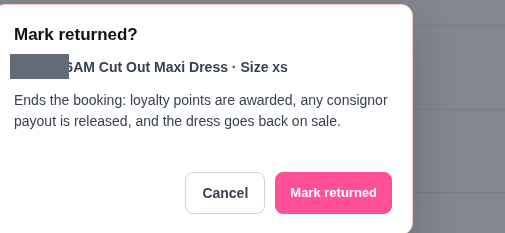
Marking a booking as returned ends it: loyalty points are awarded, any consignor payout is released, and the dress goes back on sale. It does not charge the customer or release the card hold. Refund the bond or release the hold yourself when you're ready, or raise a dispute first if you need to collect.
Create a dispute
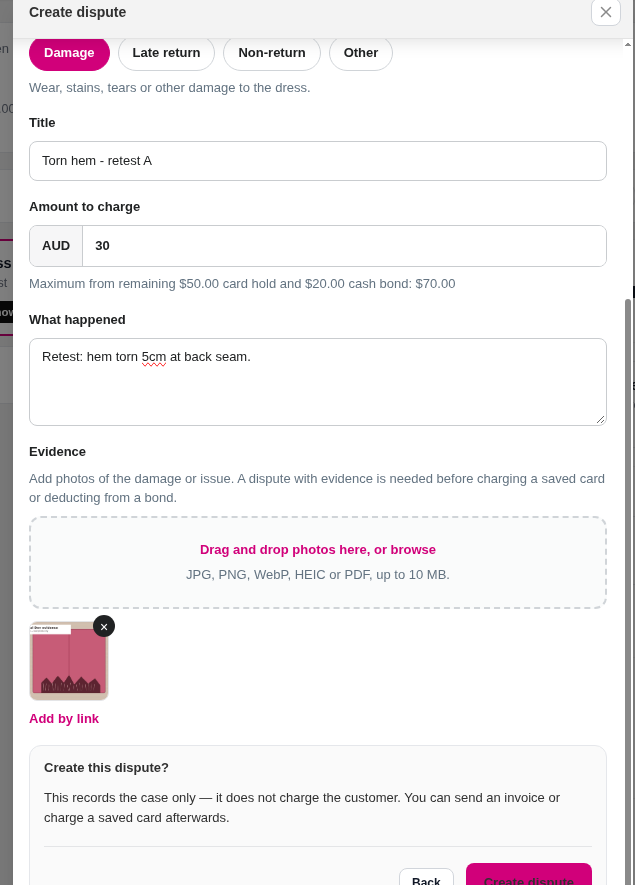
Click + Create dispute (or start from a row). Choose the booking, a type, a title, the amount, what happened, and upload evidence.
- Damage
- Wear, stains, tears or other damage to the dress. This type can be charged or deducted.
- Late return
- The dress came back after the return date. This type can be charged or deducted.
- Non-return
- The dress wasn't returned. This type can be charged or deducted.
- Other
- For notes or repairs you don't want to charge. This type can't be charged or deducted from the bond.
The amount can't be more than the remaining card hold plus the remaining cash bond, minus any other open or invoiced claims. Evidence (photos or a PDF) is required before you can charge a saved card or deduct from the bond.
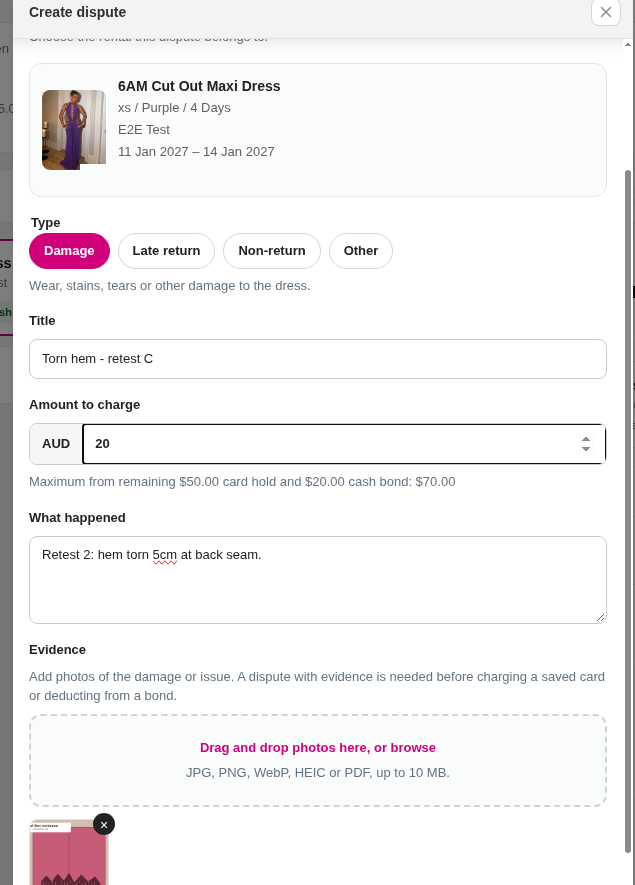
Before the dispute is saved, you'll see: This records the case only — it does not charge the customer. You send an invoice or charge a saved card afterwards.
Send an invoice
Use Send invoice whenever you need to collect and a saved card isn't available — including Afterpay, Zip, Klarna, PayPal, Shopify POS, or any order where the card wasn't saved.
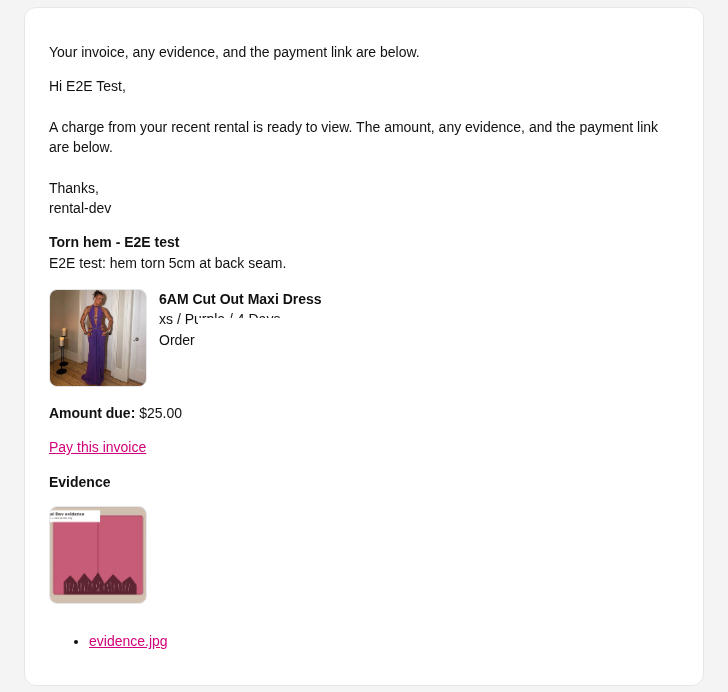
The invoice is a Shopify invoice for the dispute amount. The line includes the reason and details, with links to any evidence (Shopify invoice lines can't display images). The customer also gets an email from the app with the amount, a payment link, and thumbnail previews of the evidence.
Unpaid invoices can be reminded on the schedule you set under Settings → Invoice reminder emails. Reminders go out each morning at 8am AEDT (7am AEST).
Charge a saved card
Charge saved card is only available when the order has a saved payment method through Shopify Payments. If it doesn't, the button isn't offered — use Send invoice.
A charge is never automatic. When you choose to charge:
- The app adds an itemised line to the Shopify order for the dispute amount and notifies the customer of the edit first.
- Only then does it charge the saved card, up to the disclosed maximum.
- If the charge fails, the row stays in Needs action so you can send an invoice instead.
Grant write_payment_mandate and write_order_edits first if the permissions banner is showing. Evidence is required.
Deduct from the cash bond
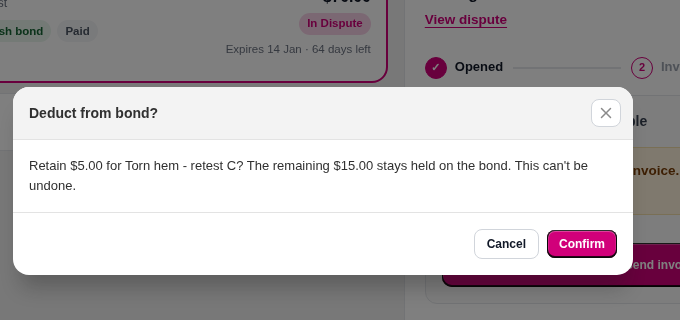
On a chargeable dispute with evidence, you can retain part (or all) of the remaining cash bond. The confirmation tells you how much will stay held. Optionally tick Refund the rest now if you want to return whatever is left after the deduction — it's off by default, so the remainder stays on the bond until you refund it.
Refund the bond
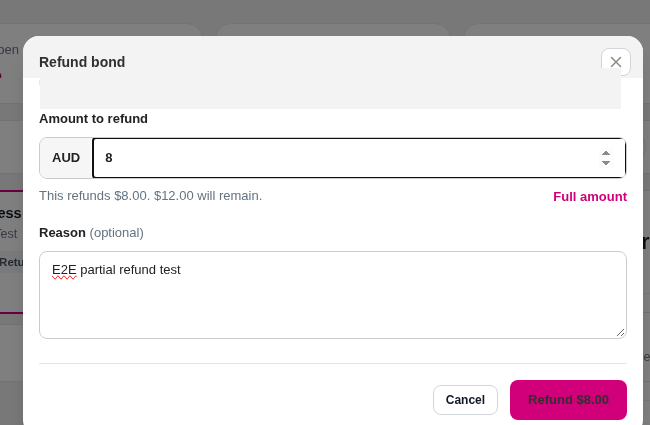
You can refund all or part of the remaining cash bond at any time — no dispute is needed. Enter the amount (or click Full amount), optionally add a reason, and confirm. This can't be undone.
Release a hold
When you no longer need the card hold — for example the dress came back in good condition — release it from the detail panel. Releasing the hold does not refund the cash bond; refund the bond separately if it's still remaining.
Cancelled orders
If the Shopify order is cancelled and refunded, the app releases the card hold and refunds any remaining cash bond (or marks the bond as refunded if Shopify's refund already covered it). The row becomes Closed, with a Cancelled & Refunded pill. The history records the bond refund, including Shopify refund covered the bond when Shopify already returned that money.
Late fees
Automatic late fees, when enabled in Settings, create or update a Late return dispute only. They never charge the customer automatically. Collect the fee yourself with Send invoice, Charge saved card (if a saved Shopify Payments method exists), or a deduction from the bond.
You can also raise a late fee from a booking's Payments tab, as described in Late fees, bond refunds and costs.
If something isn't working
- Charge saved card isn't shown. The order has no saved Shopify Payments method, or permissions haven't been granted. Use Send invoice, and grant permissions if the banner is showing.
- The customer paid with Afterpay, Zip, Klarna, PayPal or Shopify POS. Card holds and saved-card charges aren't available. Use the cash bond and Send invoice.
- I can't turn the hold on. Grant the write_purchase_options permission when Shopify asks.
- Checkout still says the hold will be automatically charged. That's Shopify's selling-plan wording — the app cannot fully remove it. The app never charges automatically.
- The order was cancelled but I expected the hold to stay. Cancelling and refunding the Shopify order releases the hold and refunds the remaining bond. That's intentional.
If you need us to set this up, please let me know as we provide free onboarding. Video walkthroughs are on our YouTube channel.